A desktop app for DGIST students · Windows · macOS · Linux

LMS, mail, academic calendar.
Now on one screen.

Daling gathers your course materials, assignment deadlines, school e-mail, the academic calendar and campus notices into one screen. Files can also go to your own Google Drive, and deadlines and events to Google Calendar.

Free · Open source · No developer server · Your files and passwords stay on your computer

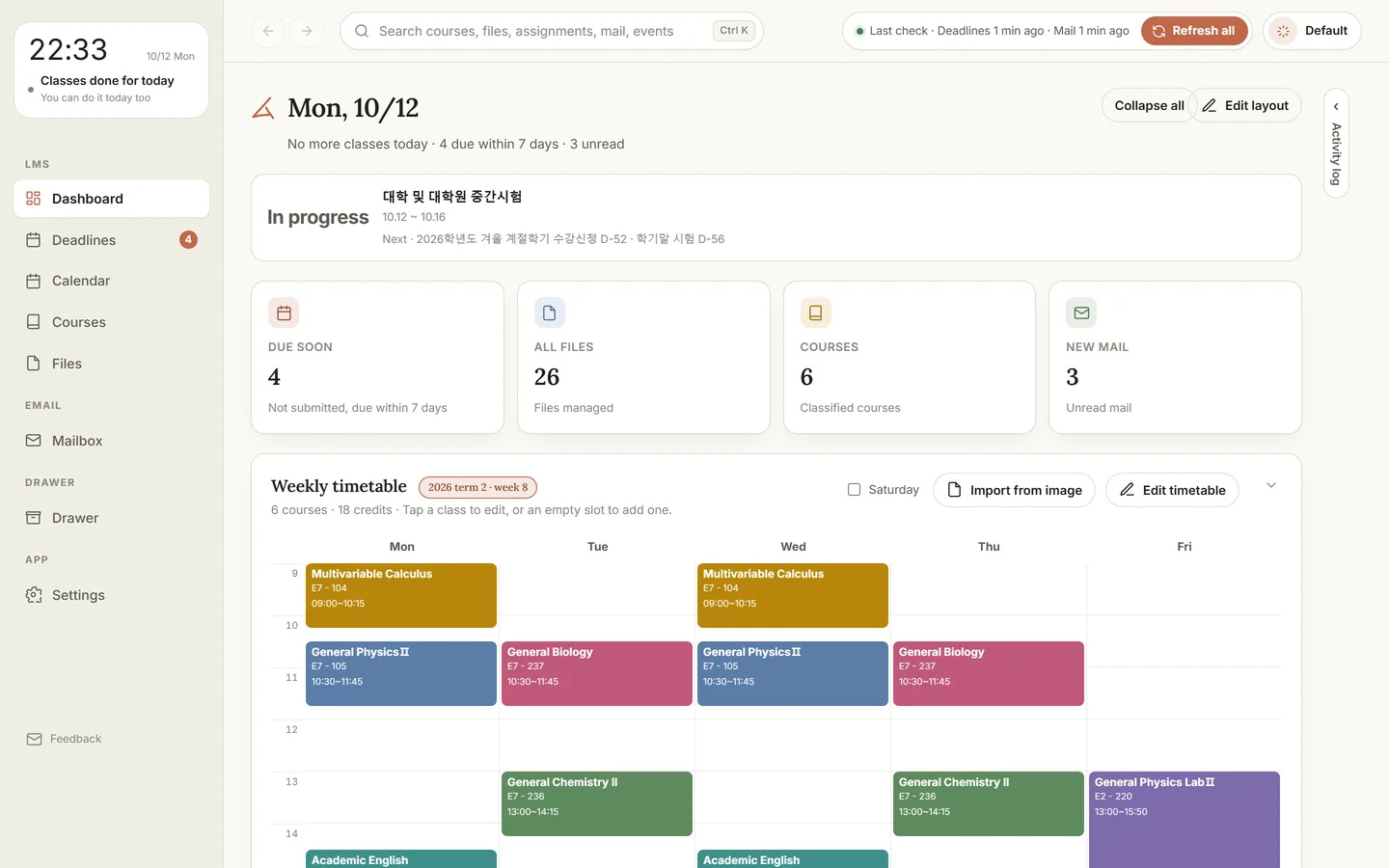
Daling dashboard: today's date, the academic event in progress, 4 assignments due soon, 26 files, 6 courses, 3 unread mails and the weekly timetable

Why Daling

How many windows did you open today?

The LMS, webmail, the academic calendar and the notice board. Separate logins, separate checks, and it's easy to miss a deadline.

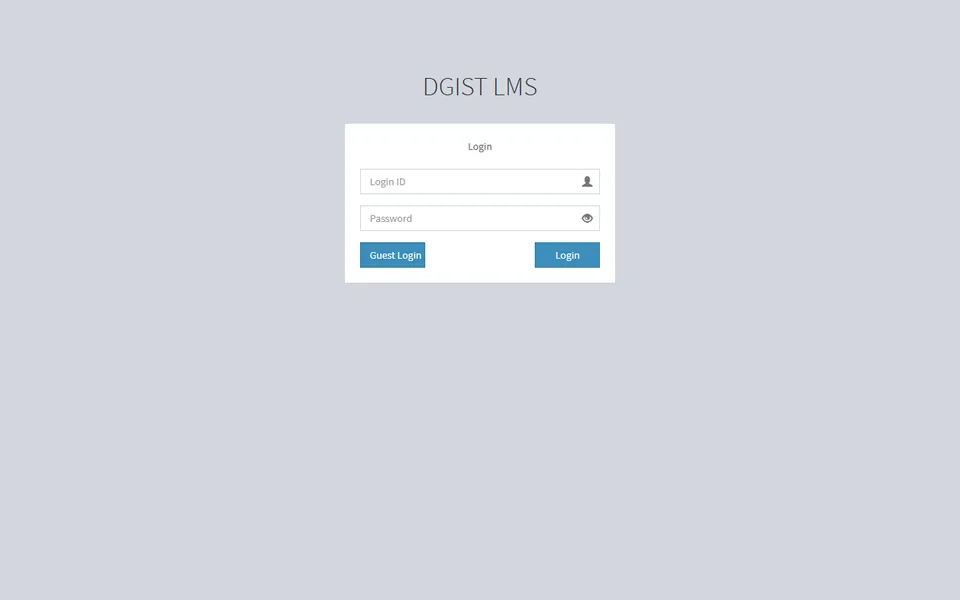
DGIST LMS sign-in page
LMSCourse files · assignments · deadlines
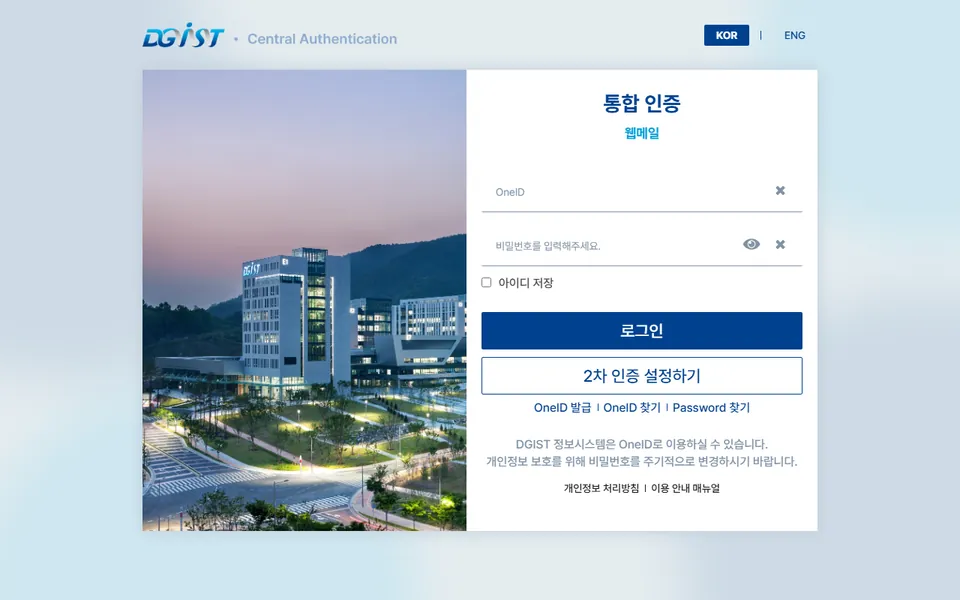
DGIST webmail sign-in page
School mailEvents · seminars · admin notices
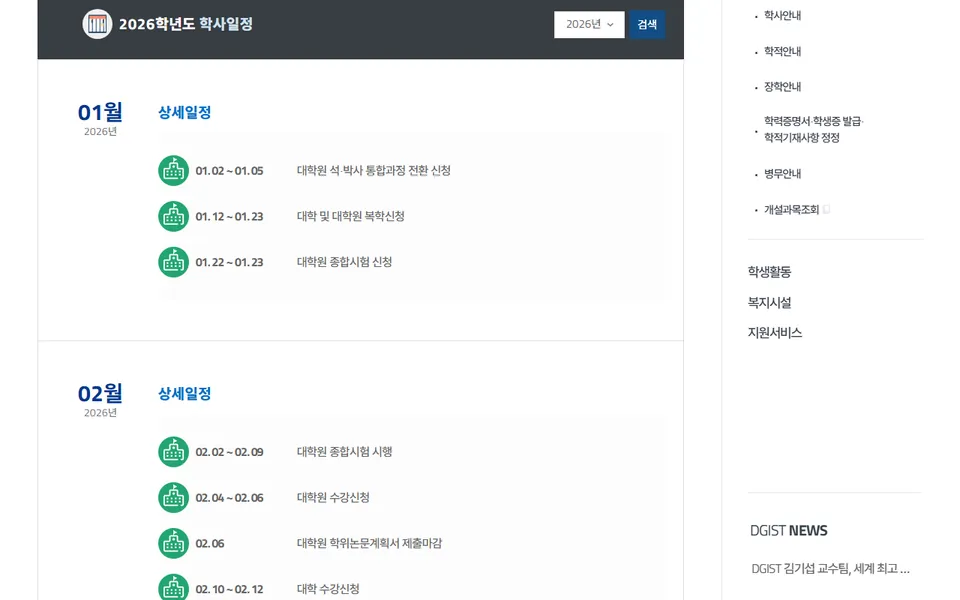
Academic calendar on the DGIST website
Academic calendarExams · registration · holidays
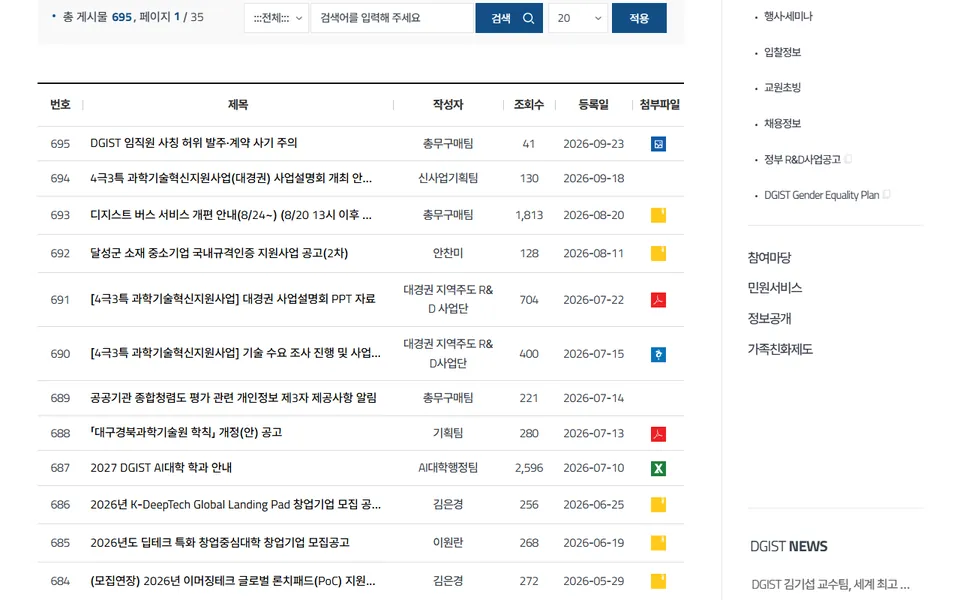
Notice board on the DGIST website
School noticesScholarships · jobs · campus news
Daling brings it all into one screen

Features

Leave it running. It collects for you.

Sign in once and Daling checks mail every 5 minutes, deadlines every hour and course files every 3 hours, fetching only what's new.

Dashboard · Deadlines

Today's to-dos and deadlines come first

The first screen shows your remaining classes, assignments due within 7 days and unread mail.

  • Every assignment from every course in one list, sorted by D-day
  • "Go submit" opens the LMS submission page for an unsubmitted assignment
  • D-day for exams and registration, plus a weekly timetable
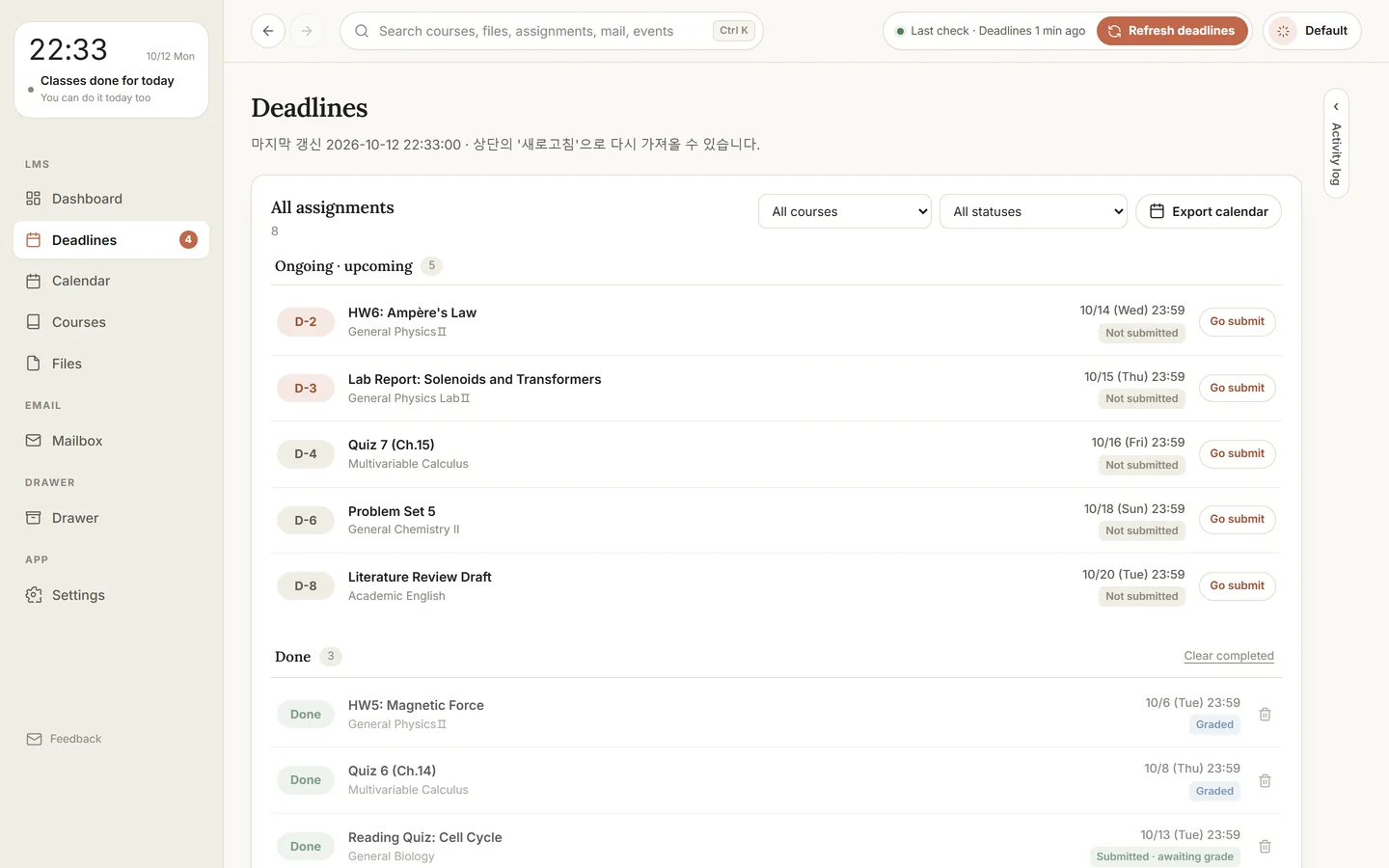
Deadlines screen: assignments from each course sorted by D-day with a 'Go submit' button

Course files

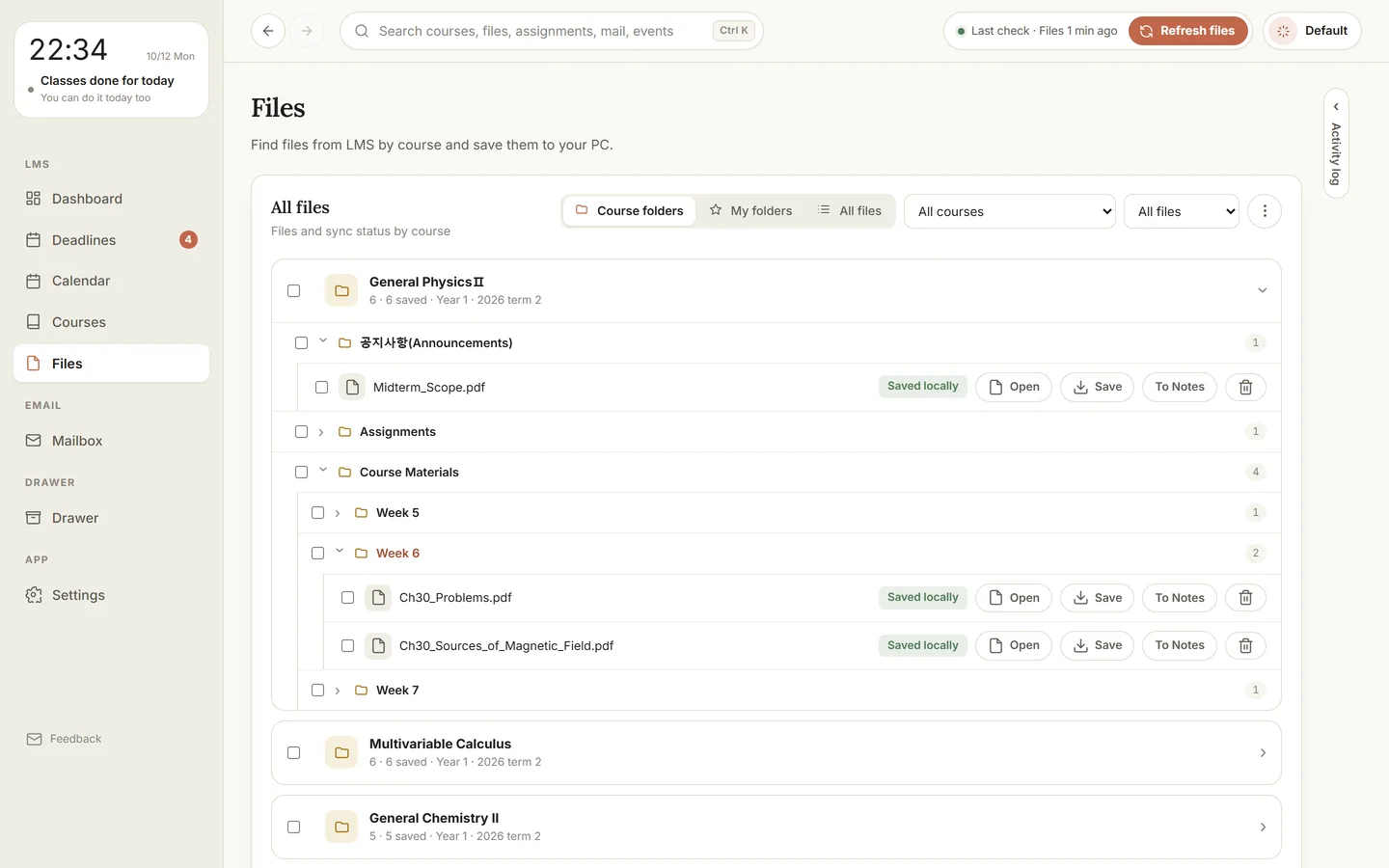
The LMS folder structure, kept up to date

Only new lecture files are downloaded, organized exactly like the week and lecture folders on the LMS.

  • Also sorted by course in a folder on your computer
  • Open or save many files at once (on Windows, send to Samsung Notes too)
Files screen: a course folder expanded into Announcements, Assignments and Course Materials with Week 5, 6 and 7 folders, matching the LMS

School mail

Read and write school mail inside the app

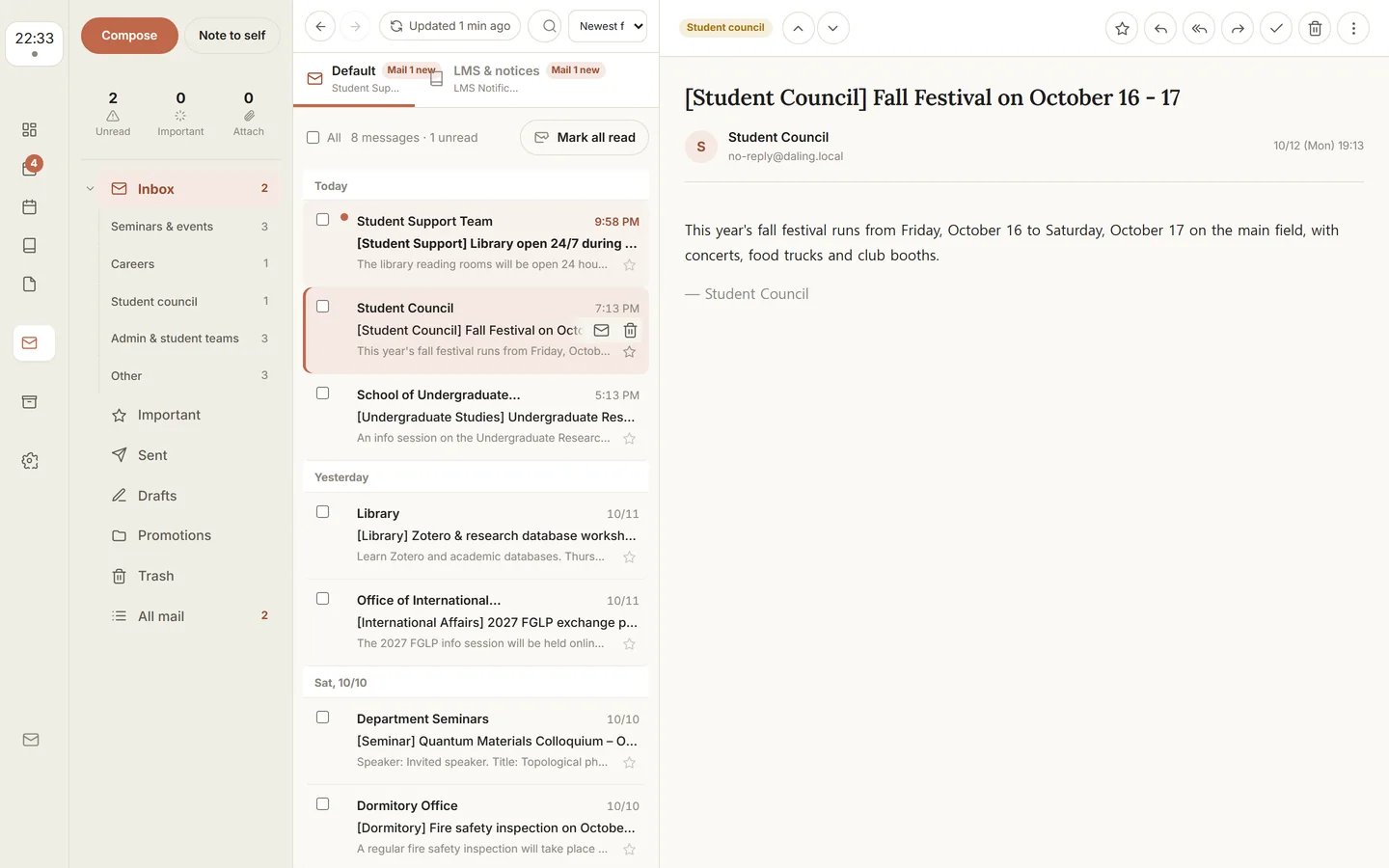
No separate webmail login: read your mail and reply right in Daling.

  • Sorted automatically: seminars & events, admin & student teams, careers and more
  • Translate or summarize mail (optional, with your own Gemini key)
Mailbox: categories on the left, messages grouped by date in the middle and the selected message on the right

Calendar

Deadlines, school dates and your plans in one calendar

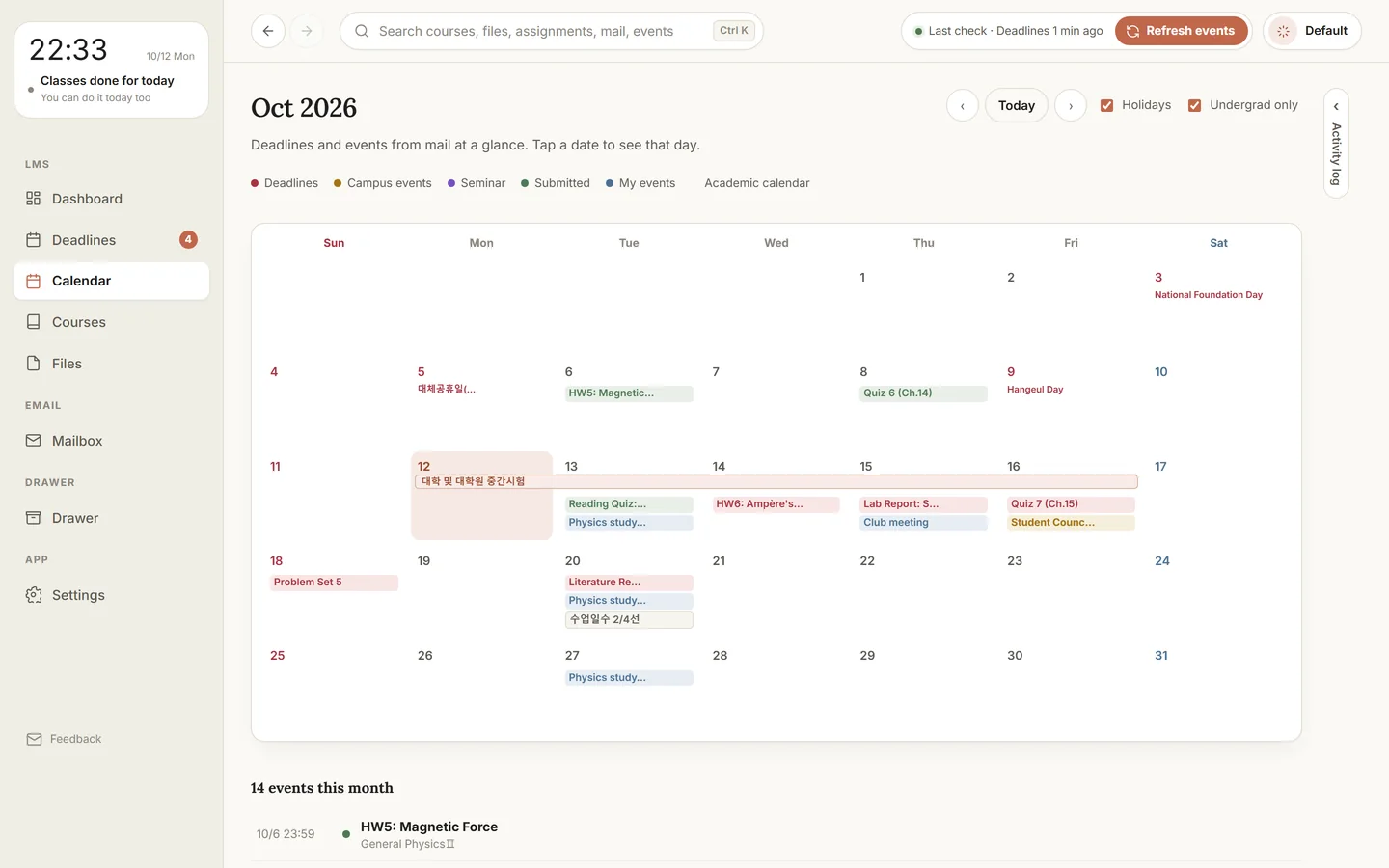
Assignment deadlines, the academic calendar and holidays fill in on their own, and you can add your own plans.

  • Deadlines in red, school events in yellow, your plans in blue
  • Export deadlines as a calendar file (.ics)
Calendar: October with midterms, assignment deadlines, the fall festival and study sessions color-coded

And more

Unified searchCourses, files, assignments, mail and events from one search box.
NotificationsGet notified before deadlines and when new files or notices appear.
Shuttle bus & noticesThe shuttle timetable and school notices, right in the app.
Exchange mapFGLP and credit-exchange partner universities on a world map.
5 themes · English UILight, dark and navy themes, and the whole app in English.
Guided tourA short tour of every screen on first launch.

Tips

Small features that save a lot of time

Things you couldn't do with the LMS and webmail on their own.

Courses · Mail

Professors, TAs and their mail, by course name

  • Type a course name in the To field and its professors and TAs appear with their section.
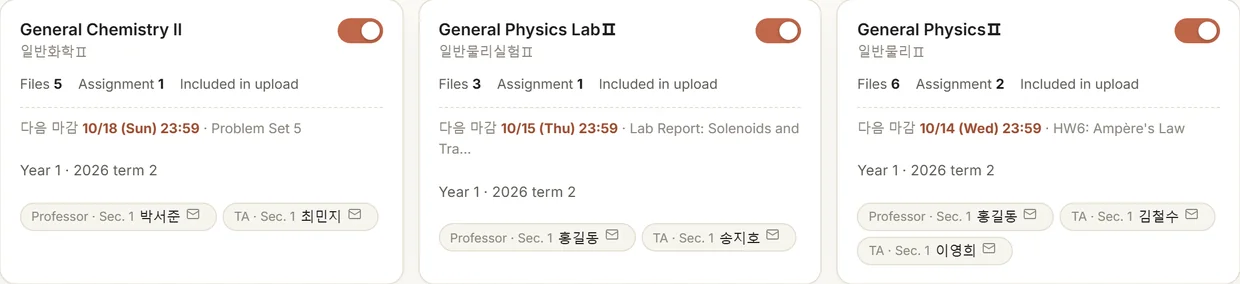
  • Each course card lists this term's professors and TAs. Click the envelope to start a mail with the subject [Course, Section 01] filled in.
  • Search "General Chemistry", "일반화학" or "일반화학2" to get that course's mail. Senders get a tag such as "General Physics II, Sec 3, Professor".
Three course cards, each showing the next deadline and the professor and TAs with their section

Files

Lecture files to Drive and cloud foldersCourse and week folders in your Google Drive, with revised files replaced. Also copied to the cloud folders below for your phone.

Calendar

Seminar mail → calendarReads the date, speaker, title and venue from seminar mail and adds it to your calendar and Google Calendar.

Timetable

Timetable from a photoFill your weekly timetable from an Everytime link or a screenshot. (photos need a Gemini key)

Mail

Unanswered mailSee sent mail that never got a reply and draft a reminder in one click.

Privacy

Runs only on your computer

There is no developer-operated server. Your files and account details are stored only on your computer and are never sent to the developer.

  • Passwords and API keys encrypted with Windows DPAPI, the macOS Keychain or the Linux keyring
  • No analytics, ads or usage tracking; nothing is ever sold
  • Connecting Google is optional; revoke it any time in your Google Account

Read the full Privacy Policy →

Google Drivedrive.file

Uploads course files into course/week folders the app creates and checks for duplicates. The app cannot see Drive files it did not create.

Google Calendarcalendar.app.created

Creates one dedicated calendar and adds or updates deadlines, academic events and dates found in mail there. It can only open calendars the app created, so your other calendars and events stay out of reach.

Other connections

DGIST LMS and mail (with your school account), the school website and public data (public info only), GitHub for update checks. Google data is never used for ads or AI training.

Download

Free to use

Free and open source under the Apache License 2.0.

Windows

Windows 10 · 11 (64-bit) · Installer (.exe)

Download for Windows

Version 1.12.21 · 57 MB

If "Windows protected your PC" appears
  1. Click More info.
  2. Click Run anyway to continue.

macOS

Beta

Apple silicon (M1 or later) · macOS 12+ · Disk image (.dmg)

Download for Mac

Version 1.12.21 · 77 MB

If macOS won't open it
  1. Open the DMG and drag Daling into Applications.
  2. In Applications, Control-click Daling → Open.
  3. If it's still blocked, go to System Settings → Privacy & Security and click Open Anyway.
  4. If it says the app "is damaged and can't be opened", run xattr -dr com.apple.quarantine /Applications/Daling.app in Terminal and open it again.

Linux

Beta

x86_64 · Ubuntu 22.04, Debian 12, Fedora 36 or newer · AppImage

Download for Linux

Version 1.12.21 · AppImage

How to run it
  1. Make it executable: chmod +x daling-*.AppImage
  2. Double-click it, or run ./daling-*.AppImage
  3. If system libraries for the LMS sign-in browser are missing, the app shows the command to install them.
  4. Korean input works with ibus.
  5. Prefer an install? Get the .tar.gz, extract it and run ./install.sh.

The Mac and Linux betas can't connect to Google Drive or Calendar yet; that arrives in the next build.

After installing

Add your school account

Enter your LMS and school mail sign-in in Settings. Passwords are encrypted and stay on this computer.

Connect Google (optional)

Only if you want Drive and Calendar. Daling works fine without it.

Leave it running

A short tour on first launch; after that, new files and mail come in on their own.

FAQ

Questions

Is this an official DGIST app?

No. It's an unofficial app made by a DGIST student and is not made or operated by DGIST. Always double-check important deadlines and notices on the LMS and official channels.

Does uninstalling delete my files?

No. Files and settings stay in the data folder (Windows C:\lms-autosaver, Mac and Linux ~/.lms-autosaver). Delete that folder if you no longer need it.

Where do I send feedback or bug reports?

Use the "Feedback" button at the bottom left of the app, or write to tutleblue12@gmail.com.